Back to all tools
Editing Essentials
Denoise
Remove noise
Strength
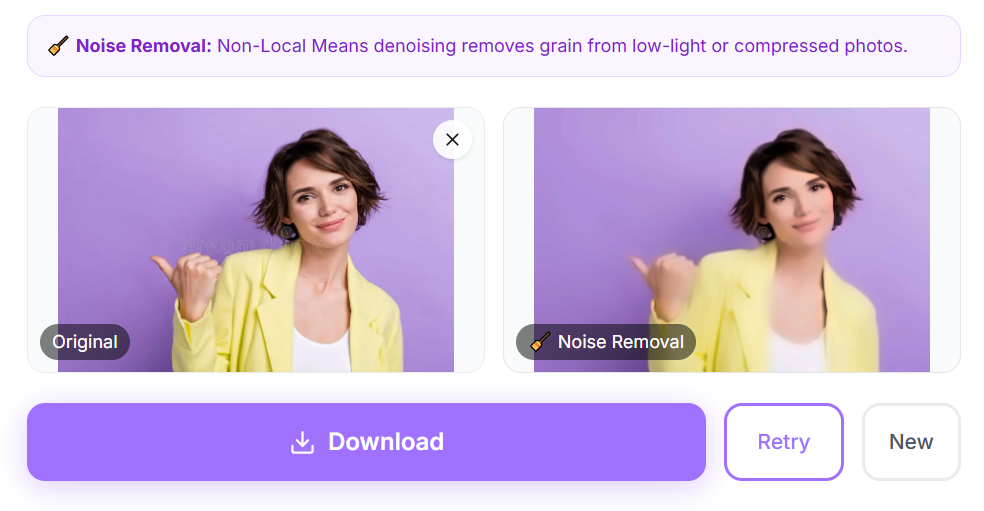
🧹 Noise Removal: Non-Local Means denoising removes grain from low-light or compressed photos.
Drop image to enhance
JPG, PNG, WebP up to 20MB
About the Denoise tool
Denoise is one of our editing essentials, designed to remove noise quickly so your photo looks its best before you share it.
Examples
How to use the Denoise tool
- 1Open the Denoise tool page and click the upload area, or drag your image directly onto it.
- 2Choose a JPG, PNG, or WebP file up to 20MB. Your image loads instantly into the preview panel.
- 3The tool processes your image automatically. A progress indicator shows while the result is prepared.
- 4Review the result in the before and after preview, then click Download to save the finished file to your device.
Common ways to use Denoise
- Fix common issues in phone photos before posting or printing
- Prepare a photo for a profile picture or an official document
- Improve image quality without learning complex editing software
Frequently asked questions
How long does Denoise take?
Most images are processed within a few seconds, though larger files may take a little longer.
Will my photo lose quality?
Denoise preserves the original resolution wherever possible, so your result stays sharp.