Back to all tools
Editing Essentials
Crop
Crop & ratio
Aspect Ratio
Drop image to crop
Paste, drag or select an image to start
About the Crop tool
Crop is one of our editing essentials, designed to crop & ratio quickly so your photo looks its best before you share it.
Examples
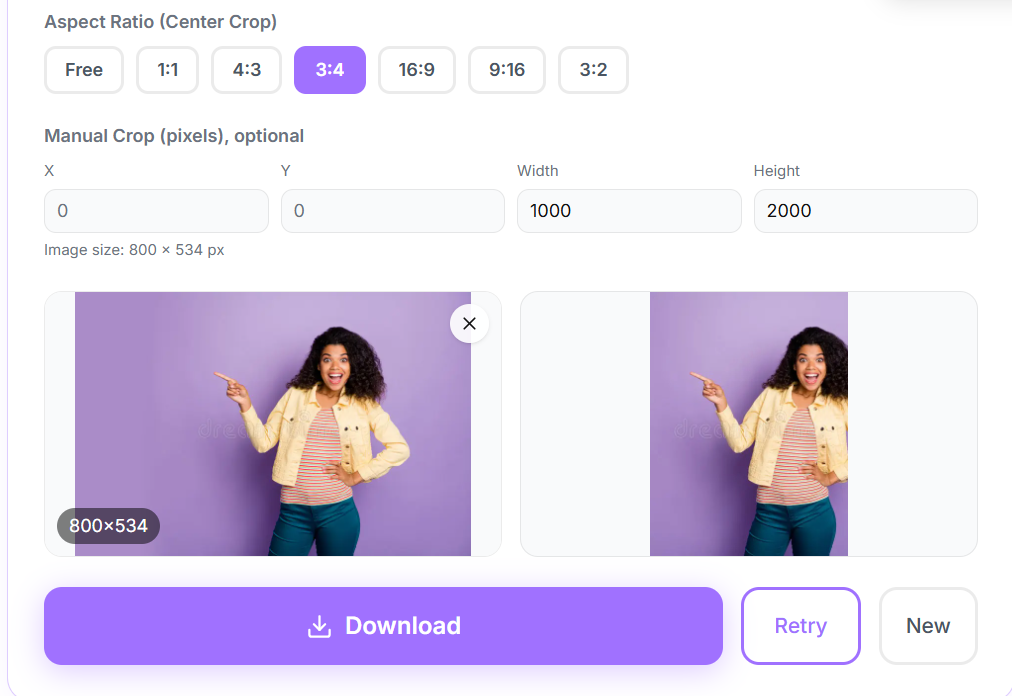
How to use the Crop tool
- 1Open the Crop tool page and click the upload area, or drag your image directly onto it.
- 2Choose a JPG, PNG, or WebP file up to 20MB. Your image loads instantly into the preview panel.
- 3The tool processes your image automatically. A progress indicator shows while the result is prepared.
- 4Review the result in the before and after preview, then click Download to save the finished file to your device.
Common ways to use Crop
- Fix common issues in phone photos before posting or printing
- Prepare a photo for a profile picture or an official document
- Improve image quality without learning complex editing software
Frequently asked questions
How long does Crop take?
Most images are processed within a few seconds, though larger files may take a little longer.
Will my photo lose quality?
Crop preserves the original resolution wherever possible, so your result stays sharp.